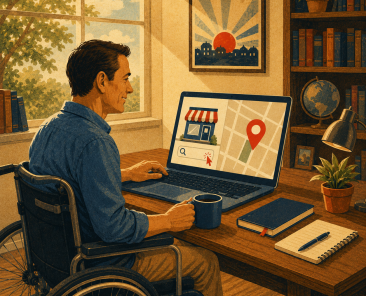
TL;DR: SEO for small businesses
Download The Page 1 Blueprint and follow each step to simplify SEO for small businesses.
Set up and verify Google Business Profile to anchor SEO for small businesses in Maps and local search.
Fix website basics: clear services page, strong calls to action, and fast mobile experience that support SEO for small businesses.
Use Search Console and Bing tools to submit sitemaps, request indexing, and monitor SEO for small businesses performance.
Build local citations, reviews, and community links to strengthen trust signals that power SEO for small businesses.
Keep weekly habits: post updates, request reviews, add photos, and refine content to steadily grow SEO for small businesses.
If you run a small business, SEO can feel like walking into a thick forest without a map.
Everyone tells you that you “need to rank on Google,” but no one slows down and shows you how in clear, simple steps.
That is what The Page 1 Blueprint is built for.
This blog is your trail guide. It walks beside you and explains each step in the Page 1 Blueprint Google Sheet, in plain language, so you can turn SEO for small businesses from a mystery into a checklist you can actually follow.
You do not need to be “techy.”
You just need a bit of focus, an hour here and there, and a willingness to work the plan.
What is SEO for small businesses?
Before we dive into the Blueprint, let’s get clear on what we are doing.
SEO for small businesses is the set of actions that help your company show up when people search for what you do in Google and on Google Maps.
For most local businesses, that means:
Showing in the Map Pack (the 3 map listings at the top)
Showing on page one of the “regular” search results
Being easy to click, call, or visit once people find you
Google uses many signals to decide who shows up where. For local businesses, three big ones are:
Relevance – how closely your profile and pages match the search
Distance – how close you are to the searcher
Prominence – how well known and trusted you look online, including reviews and links
You cannot move your building, but you can improve your relevance and prominence. That is where The Page 1 Blueprint comes in.
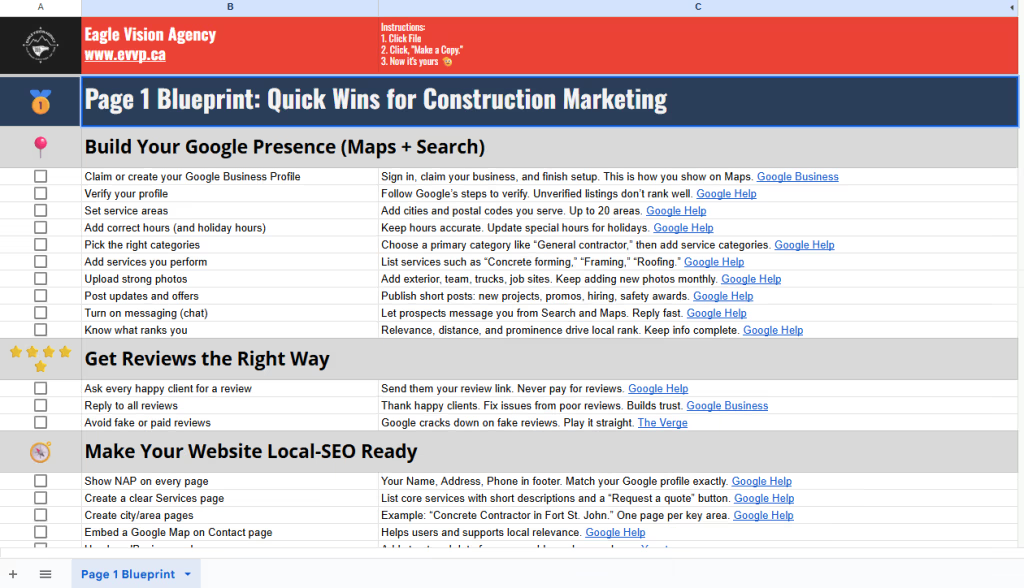
Meet The Page 1 Blueprint Google Sheet
The Page 1 Blueprint Google Sheet is your field guide to SEO for small businesses.
It is built for busy owners, trades, and front-line teams who are already juggling a dozen jobs. Instead of dumping theory on you, it gives you small, practical tasks you can check off.
Inside the sheet, you will see:
Sections like “Build Your Google Presence” and “Get Reviews the Right Way”
Tasks with short plain-language instructions
Checkboxes so you can see what is done and what is left
Space to add an owner, timeline, and status if you want to turn it into a full plan
Think of the sheet as your basecamp. This article is the guide beside you, explaining why each step matters and how to do it.
How to set up your copy of the Blueprint
Open the Google Sheet link.
In the top menu, click File → Make a copy.
Save it in your company’s Google Drive.
Optional: add columns for Owner, Due Date, and Status so your team can help.
Now let’s walk the trail, section by section.


Step 1: Build your Google presence (Maps and Search)
Section in the sheet: “Build Your Google Presence (Maps + Search)”
This step is all about your Google Business Profile (GBP). This is the box that shows your name, reviews, hours, and map pin when someone searches your business name or service.
Google says that completing your Business Profile and keeping it accurate helps improve your local ranking, especially for relevance and prominence.
If you do nothing else from the Blueprint, do this section.


Task: Claim or create your Google Business Profile
Go to Google and search for your business name.
If you see a profile with your name and “Own this business?”, click it.
If you do not have a profile yet, search “Google Business Profile” and sign in with a Google account.
Follow the prompts to claim or create your listing.
This is how you get on Google Maps. Without this, you are walking the trail without even being on the map.
Task: Verify your profile
Google will ask you to verify that you really own the business. This may be by:
Postcard to your address
Phone call or text
Email
Video recording or live video
Follow the instructions until your profile shows as Verified.
Unverified listings do not tend to rank well. Treat this like getting your business license in the online world.

Task: Set your service areas
If you travel to customers, you are a service area business.
In your Google Business Profile dashboard, go to Edit profile → Location and areas.
Add the cities, towns, or postal codes you serve.
Do not go crazy. Focus on your real area, not half the country.
Google uses distance as a factor, so be honest and realistic.
Manage your service areas for service-area & hybrid businesses

Task: Add correct hours and holiday hours
Accurate hours are a trust signal. People hate driving across town to a closed door.
In your profile, add your regular hours.
Use the special hours / holiday hours option when you know you will be closed or open late.
Update if your schedule changes seasonally.
Google encourages businesses to keep their hours up to date for a better user experience.

Task: Pick the right categories
Categories tell Google what type of business you are.
Choose one primary category that best fits you, such as:
“Plumber”
“Dentist”
“Landscaper”
“Marketing agency”
Add secondary categories for important services. For example:
Primary: “General contractor”
Secondary: “Concrete contractor”, “Excavating contractor”
Do not stuff random categories. Use only ones that truly match your work. This helps with “relevance” so Google can match you to the right searches.

Task: Add services you perform
Next, add services inside your profile.
In your GBP dashboard, go to Services.
Add the main services you offer such as:
“Kitchen renovation”
“Emergency plumbing”
“Couples counselling”
“Social media management”
For each service, add a short, plain description.
These show in your profile and sometimes in search results. They also help Google understand your business in more detail.

Task: Upload strong photos
People shop with their eyes.
Upload:
Outside of your building so people can recognize it
Inside shots so it feels familiar
Team photos
Real work: before and after, trucks, tools, product shots
Avoid only using stock photos. Aim to add new photos at least monthly.
Google notes that complete profiles with photos tend to perform better and get more clicks.


Photography Services
Get photography services that sell—product, corporate, aerial, event, and time-lapse. Fast delivery, consistent quality, and images ready for web, social, and print.

Commercial Photography That Sells
Commercial photography to boost conversions and credibility. Product, industrial, construction, aerial, event, and corporate—optimized for web, ads, and print.

Task: Post updates and offers
Your Google profile has a “Posts” area, like a mini social feed.
Use it to share:
New projects
Seasonal offers
Events
Hiring posts
Safety or community news
Keep posts short, add a strong photo, and include a simple call to action such as “Call now” or “Visit website”.
This keeps your profile active and gives customers confidence that you are alive and busy.

Task: Turn on messaging
If you can handle text-style messages, turn on Messaging / Chat in GBP.
Set up notifications on your phone.
Reply quickly. This is often a hot lead who wants an answer now.
If you know you cannot reply fast, it is better to leave messaging off than to ghost people.
Task: Understand what actually ranks you
Local SEO for small businesses lives on three pillars: relevance, distance, and prominence.
Your categories, services, and content feed relevance.
Your address and service area feed distance.
Your reviews, photos, links, and mentions feed prominence.
The rest of this Blueprint is about building those pillars one simple step at a time.
Step 2: Get reviews the right way
Reviews are the campfire stories people read before they choose you. They strongly affect prominence and trust.
Many local SEO studies show that the number and quality of reviews play a big role in local rankings.
Task: Ask every happy client for a review
Do not wait for reviews to “just happen.”
After a job goes well, ask directly:
“Would you mind leaving us a quick Google review?”
Send them a direct review link from your GBP dashboard.
Make it easy: one link, short ask, no pressure.
If you do ten jobs a week and even two people leave reviews, you will stack reviews fast over a year.
Task: Reply to all reviews
Reply to every review, even the short “Great service” ones.
For good reviews:
Thank them by name.
Mention what you did.
Reinforce something important, like safety, speed, or quality.
For bad reviews:
Stay calm.
Thank them for the feedback.
Own your part if needed.
Invite them to talk offline to resolve it.
Google recommends replying to reviews because it shows you value customers. It also builds trust for the next person reading your profile.
Task: Avoid fake or paid reviews
Never:
Pay for reviews
Offer cash or big gifts for reviews
Ask staff to post as “customers”
Use review “farms”
Google actively cracks down on fake and paid reviews, and it can remove them or even suspend your profile.
Step 3: Make your website local SEO ready
Section in the sheet: “Make Your Website Local-SEO Ready”
Your website is your main camp. Even if much of your work comes through Maps or word of mouth, Google still looks at your site to judge your business.

Task: Show NAP on every page
NAP stands for Name, Address, Phone.
Put your full business name, street address, and phone number in the footer of your site.
Make sure this matches your Google Business Profile exactly:
Same spelling of your name
Same suite number
Same phone format
Google recommends that your business information be consistent across the web. This helps them match your site, your map listing, and your directory listings.
Task: Create a clear Services page
Build a single page that lays out your main services in plain language.
On this page:
Group services into simple sections.
For each service, add:
A clear name
A short description
Who it is for
A “Request a quote” or “Book a call” button
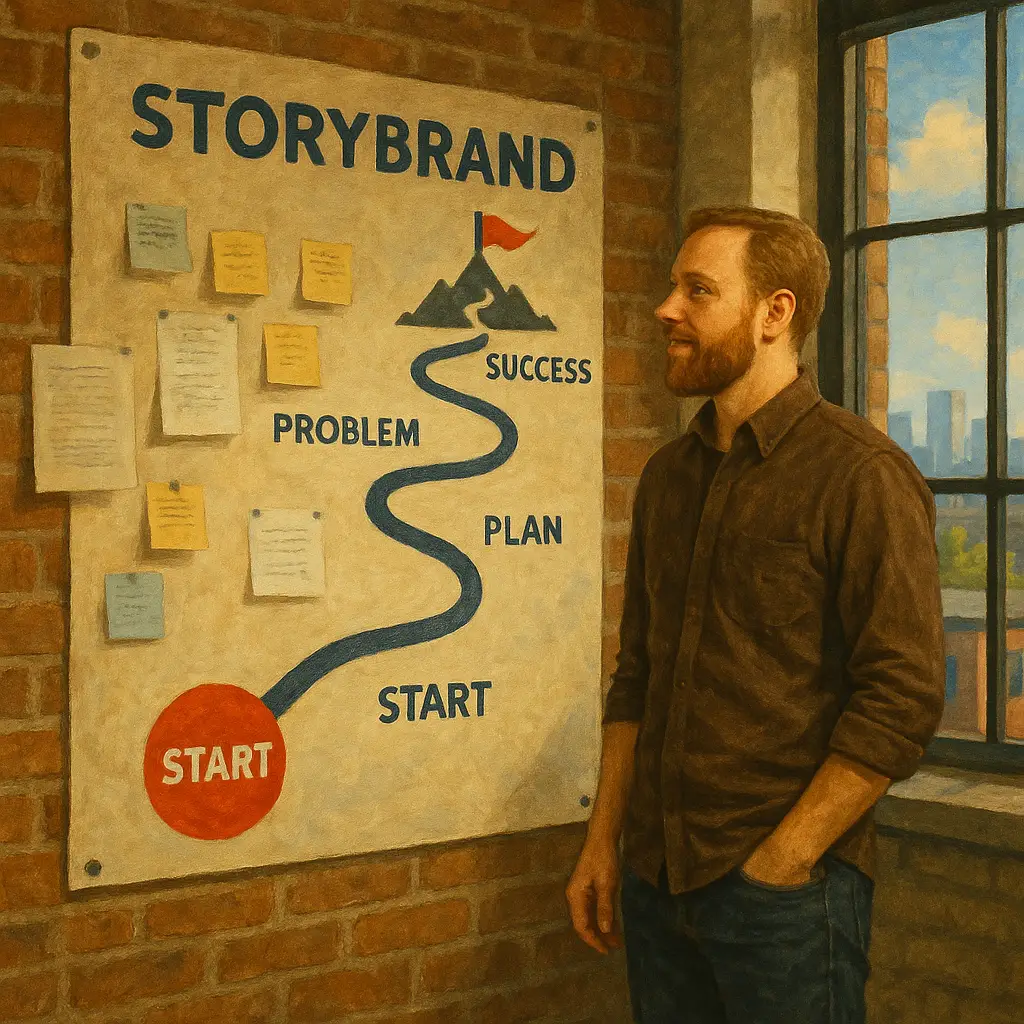
Use the StoryBrand framework when you write this copy.
Talk about the customer first, name the problem they are facing, show how your service guides them to a solution, and paint a simple picture of success at the end.
This keeps your Services page focused on what the customer wants instead of what you want to brag about, which is the whole point of StoryBrand.
For SEO and readability, organize the page with clean headings:
Use one H1 for the main page title, which should include your main topic or keyword for the page, like “Marketing services for small businesses in Fort St. John.”
Use H2s for your main service groups, such as “Web design and SEO” or “Video production.”
Use H3s under each H2 for individual services, each with a short, scannable summary and a clear button.
Search engines and screen readers use this heading structure to understand the topics on the page and how they fit together, which helps with both SEO and accessibility.
For your deeper service or product pages, follow one simple rule: one main service or keyword per page.
For example, have one page for “Social media management,” another for “Website design,” and another for “Google Ads management.”
Give each page its own unique title tag and H1 around that one topic. This makes it easier for search engines to know exactly what each page is about and match it to the right searches.
Finally, keep the content people first. Answer real questions, avoid keyword stuffing, and make it easy for visitors to see what you do, who it is for, and how to start working with you.
That kind of helpful, focused content is what Google is moving toward with its recent helpful content guidance and updates.
Step 4: Help search engines find you (indexing)
Sections in the sheet:
You can have the best content in the world, but if search engines do not know it exists, you will not show up.
Task: Open Google Search Console
Google Search Console (GSC) is a free tool that shows how Google sees your site. It lets you submit sitemaps, check what is indexed, and spot problems.
Go to the Google Search Console site.
Sign in with your Google account.
Click Start now and follow the steps.
Task: Add your site and verify ownership
In GSC:
Click Add property.
Choose URL prefix (easy option for many small sites).
Enter your exact site URL, like
https://www.yoursite.com.Follow a verification method:
HTML file upload
HTML tag
DNS record
Or through some CMS integrations
Once verified, Google knows you own the site and can show you detailed data.
Verify your site ownership
Task: Submit your sitemap
A sitemap is a file that lists important pages on your site. Google and Bing both support sitemaps to help them crawl your site.
For most small business sites:
WordPress SEO plugins like Yoast or RankMath often create a sitemap automatically at
/sitemap.xmlor/sitemap_index.xml.
In GSC:
Go to Index → Sitemaps.
Enter your sitemap URL, such as
sitemap.xml.Click Submit.
This tells Google where to find your pages.

Task: Open Bing Webmaster Tools
Google is not the only search engine that matters. Bing feeds:
Bing search
Bing Maps
Some voice assistants and other services
So here’s how to get found on Bing:
Go to Bing Webmaster Tools.
Sign in, usually with a Microsoft account.
Add your site, similar to GSC
Task: Submit sitemap to Bing
In Bing Webmaster Tools:
Open your site.
Go to Sitemaps.
Click Submit sitemap.
Paste your sitemap URL, like
https://www.yoursite.com/sitemap.xml.Hit Submit.
Now both Google and Bing know what to crawl.
Task: Optional – use Bing URL submission / IndexNow
Bing offers tools to push URLs directly to Bing. They also recommend using IndexNow, a protocol that lets you notify several search engines when pages change.
For most small businesses, this is optional, but if you update your site often, your developer or SEO agency can wire this in for faster indexing.
Task: Claim Bing Places for Business
Bing has its own version of Google Business Profile called Bing Places for Business. Claiming your listing helps you show up on Bing Maps and in Bing’s local search results.
Here is how to claim or add your business step by step.
1. Go to Bing Places
Visit the Bing Places for Business website.
Sign in with a Microsoft account. If you do not have one, create a free account first.
2. Check if your business already exists
Before you add anything new, see if Bing already has a listing for you.
Use the search box inside Bing Places.
Search by business name and city, or by phone number.
If you see your business, choose it and click Claim business.
If you do not see your business at all, you will add a new listing in the next step.
3. Add or import your business
Bing gives you two main options:
Import from Google Business Profile
Connect the same Google account you used for your Google Business Profile.
Choose the location(s) you want to import.
Bing pulls in your name, address, phone, hours, and other details so you do not have to retype everything.
Add your business manually
Enter your business name, address, phone number, website, and main category.
Add your regular business hours and any special hours if you know them.
Upload a few good photos (outside, inside, team, and work samples).
Make sure your name, address, and phone (NAP) match your website and your Google Business Profile as closely as possible.
4. Review and confirm your details
Before you verify:
Double-check spelling of your business name.
Confirm your address is correct, including unit numbers.
Confirm your main category actually matches what you do.
Make sure your website URL is correct and working.
Getting this right up front saves you headaches later.
5. Verify your listing
Bing needs to confirm that you are the real owner.
Common verification options include:
Phone call or text to your business number
Email to an address tied to your website domain
Postcard mailed to your business address
Follow the instructions on screen, enter the code they send, and complete the verification.
Once verified, your Bing Places listing goes live and can start showing on Bing Maps and in Bing’s local results.

Step 5: Build local citations and links
Think of citations and links like signposts along the trail that all point back to your camp. They help both people and search engines trust who you are.
Task: Match your NAP on key directories
Your NAP should look the same everywhere:
Business name
Address
Phone number
Key actions:
Find your existing listings (search your business name and address).
Fix any that have old addresses, old phone numbers, or name changes.
Make sure your core info matches your Google Business Profile exactly.
This reduces confusion for search engines and customers.
Task: Add industry and local listings
Next, add your business to relevant directories, such as:
Local Chamber of Commerce
Trade or professional associations
Supplier or manufacturer “Find a dealer” lists
Trusted local business directories
Google’s documentation and many SEO guides highlight external mentions and links as part of “prominence.”
Quality matters more than quantity. Focus on real, human-used listings.
Task: Earn local links
Links are like votes from other sites. Good local links might come from:
Sponsoring a youth sports team
Donating time or materials to a community project
Joining and contributing to local associations
Partnering with related businesses
When you support something, ask kindly if they can:
Mention your business by name
Link to your website
Over time, these local links help your SEO for small businesses in a very natural way.

Step 6: Create content that wins jobs
Content is where you move from “we exist” to “we are clearly the right choice.”
Task: Publish project or case study pages
For local service businesses, project pages or case studies are powerful.
A simple structure:
Project title – “Driveway replacement in [City]”
Client and location – Residential or commercial, city or area
Problem – What the client was dealing with
Solution – What you did
Before and after photos
Timeline and materials
Short client quote if available
Call to action – “Need similar work? Request a quote.”
Each of these pages is another entry point for Google and for customers who want proof.
Task: Create helpful blog posts
You do not need to become a full time blogger. Just answer the questions your customers already ask.
Examples:
A plumber: “What to do when your pipes freeze in winter”
A contractor: “Permit checklist for a basement renovation”
A health clinic: “What to expect on your first visit”
A digital agency: “Simple SEO checklist for small businesses”
When people search those questions, your blog can show up. If they like your answer, you have a head start on trust.
Simple SEO blog process (The Page 1 Blueprint way)
Use this process any time you want to write a blog that can rank and bring in real visitors.
1. Start with a real customer question
Think about what people ask you on the phone, in emails, or on site.
Turn one of those questions into a simple topic.
Example:
Question: “How do I build a brand strategy?”
Topic: “What is brand strategy and how do I start?”
This keeps your content practical and people focused.
2. Find keyword ideas for free with Google
Now you want to see how people are actually typing that topic into Google.
Open a browser in incognito / private mode.
Go to Google and start typing your topic into the search box.
Watch the autocomplete suggestions that drop down. These are real searches people do.
Hit Enter and then scroll down to the bottom of the page to find “Related searches”.
Write down a short list of phrases that look close to your topic, for example:
“what is brand strategy”
“brand strategy for small business”
“simple brand strategy”
You are looking for phrases that match your audience and sound like something your best customer would actually type.
3. Check and refine keywords with Ubersuggest (free version)
Next, use Ubersuggest to see some basic data on those ideas.
Go to the Ubersuggest website.
Enter one of your keyword ideas, like “brand strategy for small business”.
Choose your country (for example, Canada).
Click to search.
Look at three simple things:
Search volume – About how many people search this each month.
SEO difficulty – How hard it may be to rank. Lower is easier.
Keyword ideas – Ubersuggest will show related phrases, often with longer, more specific wording.
Pick one main keyword that:
Fits your topic
Has at least some search volume
Is not the hardest keyword in the list
Example: you might choose “brand strategy for small businesses” instead of the huge, broad “brand strategy”.
This is your focus keyword for the blog.
4. Check the search results in incognito
Now test your chosen focus keyword in Google.
In your incognito window, search for that one keyword.
Look at page one of the results:
Are the results actual blog posts and guides, not just giant company homepages?
Do the titles look similar to the topic you had in mind?
If everything is way off from your topic or full of huge brands, try a slightly more specific version of your keyword and check again.
5. Collect the top 3 organic articles
When you are happy with the keyword:
Open the top three organic (non-ad) results that match your topic and audience.
These are your benchmark articles.
You are not copying them. You are learning:
What Google already sees as “a good answer”
What you may need to cover to compete
6. Grab questions from “People also ask”
On the same search results page, find the “People also ask” box.
Click open a few of the questions so you can read them.
Copy around five questions that fit your topic.
You will use these as subheadings or an FAQ section in your post. They are straight from the real language people use.
7. Ask ChatGPT to summarize what is already ranking
To save time:
Copy the URLs for the three top articles.
Ask ChatGPT to:
Summarize the main points from all three
List the key questions they answer
Note any gaps or angles they missed
This gives you a quick map of what is already out there so you can write something clearer and more useful, not just more of the same.
8. Use Detailed SEO to grab heading structures
If you are using Chrome, the Detailed SEO extension can quickly show you the headings on a page.
For each of the top articles:
Open the page.
Use Detailed SEO to scrape the H1, H2, H3 headings.
Note how they:
Introduce the topic
Break down steps or elements
Group FAQs or common questions
You are learning structure, not stealing words.
9. Build your own SEO outline
Now build a fresh outline in your own words, using:
Your focus keyword
The heading patterns you saw
The “People also ask” questions
Aim for:
One H1 that uses your focus keyword
H2s for the main sections
H3s for details, steps, or FAQs
Example outline for a “brand strategy for small businesses” post:
H1: What Is Brand Strategy for Small Businesses
H2: Why brand strategy matters when you are small
H2: The key parts of a simple brand strategy
H3: Purpose
H3: Brand values
H3: Voice and tone
H3: Visual identity
H2: How to build your brand strategy step by step
H2: FAQ about brand strategy for small businesses
H3: How does brand strategy help me get more customers
H3: Do I need a brand strategy before I run ads
This outline gives you a clear writing path and shows Google exactly what your article is about.
10. Use this ChatGPT prompt to draft your article
Once you have your summary (from step 7) and your SEO outline (from step 9), you can let AI do the heavy first draft, then you just edit.
Open ChatGPT and paste this prompt, filling in the blanks:
You are a professional SEO optimized blog writer who will create a detailed, informative, and engaging long form blog article using the SEO outline below. The article should follow EV Agency’s rugged, adventure driven brand tone using simple, informal English. Use a persuasive and encouraging tone with vivid language and metaphors related to exploration and wilderness where it feels natural.
Reference the information in the summary below and provide thoughtful, practical details. Incorporate the focus keyword throughout the blog post naturally using proper grammar. Use the SEO outline with the H1, H2, H3, H4 headings to organize the content in a helpful and user friendly way. Make sure the article is easy to read, with clear transitions between sections. Include an FAQ section about the focus keyword at the end.
Blog Topic: [insert]
Focus Keyword: [insert]
Summary of information:
[paste your summary here]
SEO Outline:
[paste your outline here]
Let ChatGPT generate the full article, then copy it into your document and make it your own: tweak examples, add your stories, and adjust details to match your local market and voice.
11. Write for humans first, SEO second
Now review and edit the draft.
Answer the main question like you are talking to a customer, not a robot.
Make sure your focus keyword shows up naturally:
In the H1
In one or two H2s
A few times in the body where it fits
Add internal links to:
Your related service page
Any tools, checklists, or guides (such as The Page 1 Blueprint)
Your goal is simple:
Help one real person understand and solve one real problem.
If you do that, and you build your posts around good keywords, clear headings, and real customer questions, your blog will slowly turn into an asset that ranks and brings in better leads over time.
Task: Add clear calls to action (CTAs)
Every important page should make the next step obvious.
Common CTAs:
“Request a quote”
“Book a consult”
“Call now”
“Get a free estimate”
Make your buttons big, clear, and above the fold on mobile. Do not make people hunt for how to contact you.

Step 7: Turn SEO into a weekly habit
“Weekly Habits (15–30 minutes)”
SEO for small businesses is not a one-time push. It is like staying fit. A few simple habits each week keep you in good shape.
The Blueprint suggests a weekly rhythm you can follow in 15–30 minutes.
Task: Post 1 Google update
Pick one:
A recent job
A team highlight
A seasonal tip
A small promo
Post a photo and a short note in your Google Business Profile with a call to action like “Call to book” or “Learn more”.
Task: Ask for 2–3 reviews
Every week:
Look at who you served.
Pick 2 or 3 happy clients.
Send them your Google review link with a simple message.
Do this every week and you will build a strong review profile over time.
Task: Add 2 new photos
Keep your online presence fresh.
Site photos
Before and after
Team at work
Product setups
Upload them to your Google profile and, when useful, to key pages on your site.
Task: Check Search Console
Open Google Search Console and quickly scan:
Coverage – Any new errors?
Performance – What searches are bringing people in?
Pages with issues – Anything broken?
You do not need to understand every report. You are mainly watching for red flags and learning which pages get the most traffic.

Step 8: Use the one day “launch” plan
Section in the sheet: “One-Day Launch Plan”
If you are starting from almost zero or you need to get things in shape fast, the Blueprint gives you a simple 4-hour sprint.
Hour 1: Google profile
Claim and verify your Google Business Profile.
Add hours, services, categories, service areas.
Upload a few strong photos.
Turn on messaging if you can handle it.
Hour 2: Website basics
Add your NAP to your footer.
Make sure your homepage and contact page clearly say what you do and where.
Embed a Google map on your contact page.
Add a clear “Request a quote” or “Call now” button to key pages.
Hour 3: Indexing
Set up Google Search Console.
Set up Bing Webmaster Tools.
Submit your sitemap to both.
Hour 4: Reviews and posts
Send 3 review requests to happy clients.
Publish one Google Business Profile post with a strong photo and simple call to action.
By the end of this sprint, your core SEO for small businesses foundation is live and ready to build on.
Putting The Page 1 Blueprint to work
If this felt like a lot, remember:
You are not doing it all at once.
Use your Page 1 Blueprint Google Sheet like a trail map:
Start with Google Business Profile and reviews.
Move to website basics and indexing.
Add citations, links, and content.
Keep up with your weekly habits.
Every box you check is another signal to Google that your business is real, active, and ready to help people nearby.
If you want extra help, this is exactly the type of work a good local SEO agency can take off your plate, while you stay focused on running your company.


Web Design Company
A web design company that creates websites that consistently convert leads into customers. Book a free consultation.
Need help choosing your next step? Get in touch with the marketing outfitters at EV Agency. We’ll help you chart the path—and walk it with you.
SEO for small businesses is the process of making your business easier to find in search engines like Google and Bing. It focuses on:
Local map results
Organic (regular) search results
Turning that visibility into calls, visits, and sales
For most small companies, that means optimizing your Google Business Profile, website, reviews, citations, and basic indexing, instead of chasing complex technical tricks.
It depends on your starting point and how competitive your area is.
Rough guide:
Quick wins (weeks):
Claiming and verifying your Google Business Profile, fixing hours, and getting a handful of new reviews can move the needle in a few weeks.Deeper wins (months):
Strong service pages, city pages, and better links often take 3–6 months to really show in rankings.
The Page 1 Blueprint is designed to give you early wins while also building long-term strength.
Yes, you still need a website.
Your Google profile is like a trailhead sign. Your website is the full camp.
A good site helps you:
Rank in regular search results
Answer more detailed questions
Show full project proofs
Convert bigger jobs and long-term contracts
Search engines also use your site to understand and confirm your business details.
Yes. Local is exactly where SEO shines.
If most of your work comes from a city or region, showing up in local search and Maps is one of the best ways to reach people who are ready to buy.
The Page 1 Blueprint focuses on the actions that move the needle for local businesses:
Google Business Profile
Local reviews
Local citations and links
Local-focused content
You can absolutely start DIY with The Page 1 Blueprint.
It is designed so a busy owner or admin can:
Claim and improve your profiles
Fix basic website issues with your web person
Build weekly habits for posts, reviews, and photos
An agency becomes helpful when:
You do not have time to keep up the habits
You need deeper technical work or content production
You want help tracking and reporting results
A good partner will use a clear process like this Blueprint rather than hiding behind jargon.
Use the Blueprint’s rhythm:
Weekly
1 Google post
2–3 review requests
2 new photos
Quick scan of Search Console
Monthly
Check your listings and NAP consistency
Review top pages in Search Console
Add or update one piece of content (blog or project page)
Quarterly
Review your categories and services
Talk with your agency or web person about any technical or speed issues
Keep Growing • More Dispatches from Basecamp
Learn the difference between paid, owned and earned media and discover 7 practical ways to build a stronger marketing mix that creates reach, trust and growth.

A strong value proposition helps customers quickly understand why your business matters. Learn the five building blocks, seven practical steps, and real-world examples you can use to create a clearer, more compelling message.

Unclear messaging makes every part of marketing harder. This guide explains the 22 essential brand messaging elements growing businesses need, from customer problems and positioning to website copy, lead generation, and email nurture.

Learn what digital marketing is, how it works, and 9 practical strategies to reach customers, build trust, and grow your business online.

Start our free digital marketing course for practical lessons, examples, worksheets, and tools that help businesses build a clearer marketing strategy.

Enhance your digital presence with accessibility for website practices. Make your site easier for everyone to use and engage.

A strong buyer persona helps you understand what your best customers need, what holds them back, and what helps them choose. Learn how to build clear customer profiles that guide better marketing, sales, SEO, and website copy.

Qualified lead explained: what it means, how to identify one, and how to improve lead quality so your sales and marketing work better together.

Learn what a hero section is, what to include, and how to design hero section copy, visuals, CTAs, and trust cues that drive conversions.

Learn what black hat SEO is, common tactics, real risks, and safer strategies that build lasting rankings, traffic, and trust for your site.